Guide
Ten B-roll clips for your talking videos

For this guide and its prompts we recommend:
- PixVerse generates short B-roll clips from one-shot prompts for the lines that need a picture.
- Higgsfield gives you a second try for clips that did not fit the line.
- Fliki builds a stock-style clip from a sentence for general scenes. Free plan (source)
Offers checked 21 Oct 2026
You can now fill talking videos with B-roll clips.
A labelled set of ten short B-roll clips matched to the lines of your script.

What you need
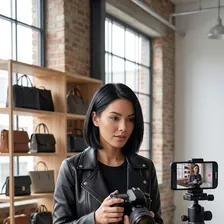
- The script of your talking video
- An AI video generator
- PixVerse that makes clips from text
- A video editor
Recommended AI tools
PixVerseYou choose from several takes HiggsfieldScenes and motion that look planned FlikiA voiced video from text you already haveFree plan
Steps
List the B-roll moments from the script
Ask a chat assistant to mark the lines where a picture would help: an object, a process, a place. Keep a simple list with the line, the shot idea and a status.
Write one shot per clip
Each clip shows one thing for a few seconds. Describe the subject, the camera and the light.
WeakShow our happy customers and our busy workshop.
BetterClose-up of hands folding a linen napkin on a wooden table, slow push in, soft daylight. No faces.
Never invent what should be real
B-roll must not pass off invented scenes as real: no fake customers, no fake premises, no fake results. Use AI for illustrations, objects and processes; film your real shop and products yourself. No AI children or animals.
Make a stock-style alternative from text
For general scenes, try a text-to-video tool that builds a short clip from a sentence. Compare it with the generated clip and keep the one that fits the line best.
Place and label the clips
Put each clip under its line in the editor and add a small 'AI footage' label on screen or in the description. Watch the whole video once to check that no clip suggests something untrue.
The full instruction
Copy it into any AI chat assistant and change only the first line.
Change only this line: TOPIC = [how to care for a wooden cutting board]

You help me plan B-roll for a talking video about my TOPIC.

Below this prompt I paste my script. If you need to know what I can film myself (for example my workshop, my products, my hands at work), ask me first.

Do three things:
1. Mark the 10 lines where a short picture would help most. For each, write the line and say whether I should film it myself or it can be AI footage.
2. For each AI clip, write a prompt of at most 25 words: one subject, one camera move, the light. No people's faces, no children, no animals, no customers, premises or results that look real.
3. Write a one-line label for the description that says which shots are AI footage.

Start with the list of 10 lines.

Paste your material below this line:
What you end up with
Ten short clips matched to your script, each one either filmed by you or clearly labelled as AI footage, and none showing something that did not happen.
Common mistakes
- Using AI clips of 'customers' or a 'workshop' that look like your real business.
- Forgetting the AI label in the video or the description.
- Covering every line with B-roll, so viewers stop seeing the speaker.
Processes that need more than one tool

Each process below uses several tools, each for the job it does best. Any AI chat assistant works where one is named.
List B-roll moments from the script
Tools, in order: any AI chat assistant → a spreadsheet
- Ask the chat assistant to mark ten lines that need a picture and say which you should film yourself.
- Keep the list in a spreadsheet: line, shot idea, film or AI, status.
The prompt for this process
Mark the B-roll moments in my talking-video script.

Script: [paste]
What I can film myself: [e.g. my shop, my products, my hands at work]

Pick the 10 lines where a short picture helps most. For each, give the line, a shot idea in at most 12 words and "film it" or "AI footage". Anything that should look like my real business, customers or results must be "film it". Format it as a table I can paste into a spreadsheet.

Start with the table.
Generate the clips
Tools, in order: PixVerse → Higgsfield
- Generate each AI clip in PixVerse from a one-shot prompt with no faces, children or animals.
- Run the weakest ones again in Higgsfield and keep the clip that fits the line.
The prompt for this process
Write video prompts for the AI footage lines in my B-roll list, for PixVerse or Higgsfield.

Lines marked AI footage: [paste]
Look of my video: [e.g. warm daylight, calm, close-ups]

For each line, write a prompt of at most 25 words: one subject, one camera move, the light. Use objects, materials and processes, not faces. No children, no animals, no scenes that look like real customers, premises or results. If a line has a true contrast, for example rough material and finished product, you may use it as the opening shot.

Start with the first line.
Stock-style alternative from text
Tools, in order: Fliki → a video editor
- Make a short general scene from a sentence in Fliki.
- Compare it with the generated clip in the video editor and keep the better one.
The prompt for this process
Rewrite my B-roll ideas as short sentences that a text-to-video tool like Fliki can turn into general scenes.

B-roll ideas: [paste the lines and shot ideas]
Topic of my video: [topic]

For each idea, write one plain sentence of at most 15 words that describes a general scene, not my business. Mark any idea that should not be AI footage because it would look like my real customers, premises or results.

Start with the first idea.
Place and label the clips
Tools, in order: a video editor → your video platform
- Place each clip under its line and add an 'AI footage' label in the video editor.
- Upload the video and repeat the AI footage note in the description.
The prompt for this process
Write the AI labels for my talking video with B-roll.

Video title: [title]
Clips that are AI footage, with timecodes: [paste]
Clips I filmed myself: [paste]

Write an on-screen label of at most 3 words for the AI clips, a description line of at most 25 words that says which shots are AI footage, and a list of the clips to check once more so none suggests something untrue.

Start with the on-screen label.
For this result we recommend these tools
This guide describes a result. These tools are one way to get there faster. Whether one pays for itself depends on your work, and we promise no result.
From Sofia’s story: Sunday: Ema and Sofia make an autumn advert
ToolPixVerse
Turns a text prompt or a photo into a short video clip.
From $10 per month (Standard, monthly billing) (source, checked 2026-10-04)
PixVerse generates short AI videos from a text prompt or a start image. In this guide it is used in “Generate the clips”. It is used for Reels, teasers and product moments, and it makes several versions quickly, so you keep only the best one.
Higgsfield
An AI image and video generator with many models, effects and an ads studio.
From €19 per month (Starter, billed annually; 270 credits a month) (source, checked 2026-10-15)
Higgsfield is an AI image and video generator with ready camera moves and effect templates. In this guide it is used in “Generate the clips”. Creators use it for ads, covers and short clips, and its motion presets can turn a still product photo into a moving shot.
From Thomas’s story: Thomas gives the shelter animals a voice - and a rule
ToolFliki
Turns text into videos with AI voices.
From €24 per user per month (Standard, monthly billing, no commitment) (source, checked 2026-10-04)
Fliki turns a script, a blog post or an outline into a narrated video with AI voices and stock footage. In this guide it is used in “Stock-style alternative from text”. It is popular for explainers, training clips and faceless series, and text, voice and visuals are edited together, line by line.
Free plan (source, checked 21 Oct 2026)
We recommend a specialised tool for each process rather than one tool that does everything. Tools that try to do everything rarely do any one job really well, because no single function gets perfected. It is the same in life, in business and in relationships: spread your attention over ten places and nothing gets done properly.
Forward, without brakes

Now that the Kailiniai Heroes exist, you can have your own. Create one hero or several, and use them for goals that used to need a whole team or a big budget.