Guide
Product photos for your store from one phone shot

For this guide and its prompts we recommend:
- Fotor removes the background and corrects light and sharpness. Free plan (source)
- Higgsfield places the cut-out product in a simple scene that you then check against the original photo.
Offers checked 21 Oct 2026 More tools below ↓
You can now turn one phone photo into listings.
Five clean product images (plain background, lifestyle scene, detail) ready for a product page, made from one phone photo.

What you need
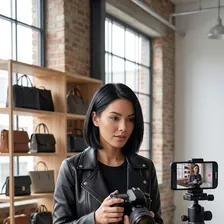
- Your phone camera and a window with daylight
- Fotor for background removal, light and sharpness
- Higgsfield for a lifestyle scene
- Your online store, for the upload
Recommended AI tools
FotorClean, sharp photos without a reshootFree plan HiggsfieldScenes and motion that look planned YouCamTidy photos without hours of manual retouchingFree plan ShopifyA working store with checkoutTrial
Steps
Shoot it right once
Ask a chat assistant for a short shot checklist for your product, then follow it: daylight from the side, a plain surface, the phone held steady, the whole product in frame with space around it. A good source photo saves most of the editing.
WeakOne quick photo on the kitchen table in the evening, under a ceiling lamp.
BetterDaylight from the side, white card behind the product, phone at the product's height, three shots and keep the sharpest.
Remove the background and fix the light
Cut the product out onto a plain background and correct the light. This is your main image, and it must look exactly like what the buyer will receive.
Make one lifestyle scene, and keep the product unchanged
Place the cut-out product into a simple scene that shows how it is used. Compare it with the original photo: colour, size, material and text must not change. If a generated scene could mislead, write 'Scene created with AI' next to it. No AI children or animals in the scene.
WeakPut my bag in a luxury setting with a model.
BetterPlace this exact bag on a wooden bench by a window, morning light. Keep its colour, size, stitching and logo exactly as in the photo. No people.
Add a close-up and, if you need it, an on-person view
A detail shot of the material or the clasp answers questions a wide shot cannot. Show the product on a person only with your own photo, a person who gave consent, or an AI model that is clearly labelled as AI.
Do the whole catalogue with a list
Keep a simple list: product, source photo, which images are done, which are labelled. Then upload in one go and check every product page on a phone.
The full instruction
Copy it into any AI chat assistant and change only the first line.
Change only this line: PRODUCT = [a brown leather laptop bag, 40 cm wide]

You help me plan product photos for my online store from one phone shot of my PRODUCT.

If you need the exact colour, material and size, who buys it and how they use it, or my space and light, ask me first, one question at a time.
Images I need: plain background, one lifestyle scene, one close-up.

Do four things:
1. Write a shot checklist of at most 8 lines for taking the source photo of my PRODUCT with a phone.
2. Write one prompt for an AI image generator that places this exact product in a simple scene. The prompt must say that colour, size, material and any text stay exactly as in the photo, with no people, children or animals.
3. List what to compare between the original photo and every generated image before I publish it.
4. Write one short note for the product page that says which image is a scene created with AI.

Start with the shot checklist.
What you end up with
A set of five product images from one photo, each checked against the real product, with AI scenes labelled where they could mislead.
Common mistakes
- Letting the generated scene change the product's colour, size or material.
- Showing the product on a real person without their consent, or on an AI model without saying so.
- Editing a weak source photo for an hour instead of retaking it in better light.
Processes that need more than one tool

Each process below uses several tools, each for the job it does best. Any AI chat assistant works where one is named.
Shoot it right
Tools, in order: any AI chat assistant → your phone camera
- Ask the chat assistant for a shot checklist for your product.
- Take three shots by the window following the checklist and keep the sharpest.
The prompt for this process
You help me take one good phone photo of a product for my online store.

Product: [what it is, colour, material, size, shiny or matt]
My light and space: [e.g. a north-facing window, a white table]
Images I will make from it later: plain background, a lifestyle scene, a close-up

Write a shot checklist of at most 8 lines: light direction, background, phone height, distance, space around the product, how many shots to take. Add 2 signs that a shot should be retaken.

Start with the first line of the checklist.
Remove the background and fix the light
Tools, in order: Fotor → Shopify
- Remove the background and correct the light in Fotor.
- Upload it as the main product image in Shopify and check it on a phone.
The prompt for this process
I removed the background from my product photo in Fotor and fixed the light, and I am about to upload it to my Shopify product page.

Product: [what it is, real colour, material]
What I changed in the photo: [background, light, sharpness]
What the product page says: [paste the description]

List anything in my notes that could make the image look different from the product a buyer will receive. Then write an image alt text of at most 15 words that describes the product plainly.

Start with the list.
Make a lifestyle scene
Tools, in order: Higgsfield → Fotor
- Place the cut-out product in a simple scene in Higgsfield, with no people, children or animals.
- Check the sharpness in Fotor and compare colour, size and material with the original photo.
The prompt for this process
Write an image prompt for Higgsfield that places my cut-out product in a simple scene.

Product: [what it is, exact colour, material, size, any text or logo]
How buyers use it: [e.g. on a desk at home]
Look of my store: [e.g. light wood, white walls, soft daylight]

The prompt must say that the product keeps its exact colour, size, material and text. No people, no children, no animals. At most 40 words. Then give me 4 points to compare between the scene and my original photo, and one short note for the product page saying the scene was created with AI.

Start with the image prompt.
Make a close-up or on-person variant
Tools, in order: YouCam → Fotor
- Make the detail or on-person view in YouCam, using your own photo, a person who consented, or a model labelled as AI.
- Correct only light and sharpness in Fotor.
The prompt for this process
I want a close-up or an on-person image of my product, made in YouCam and cleaned up in Fotor.

Product: [what it is, the detail buyers ask about, e.g. the clasp or the fabric]
Person in the image: [me / a person who gave written consent / an AI model]
Question buyers ask that the image should answer: [e.g. how long is it when worn]

Write the instruction for the image in at most 30 words. If the person is an AI model, write the label for the product page. List 3 things to check so the product still looks exactly as it is.

Start with the instruction.
Do the whole catalogue
Tools, in order: a spreadsheet → Shopify
- Keep a photo list: product, source photo, images done, AI label needed.
- Upload the finished images to Shopify in one go and check each product page.
The prompt for this process
You help me plan product photos for my whole Shopify catalogue in one spreadsheet.

Products: [paste the list of product names]
Images I want per product: [e.g. plain background, scene, close-up]

Make a table with these columns: product, source photo done, plain background done, scene done, close-up done, AI label needed (yes or no), checked against product (yes or no), uploaded. Fill in the product names and leave the rest empty. Then write 3 rules for when an image needs an AI label.

Start with the table.
For this result we recommend these tools
This guide describes a result. These tools are one way to get there faster. Whether one pays for itself depends on your work, and we promise no result.
Fotor
AI photo clean-up: background removal, light and sharpness.
From €2.83 per month (Pro, €33.99 billed yearly) (source, checked 2026-10-16)
Fotor is a browser photo editor with AI tools for background removal, light and sharpness. In this guide it is used in “Remove the background and fix the light” and “Make a lifestyle scene”. Shops and creators use it to make product and post photos look clean without a studio, and one click fixes light and background while the product stays as it is.
Free plan (source, checked 21 Oct 2026)

Higgsfield
An AI image and video generator with many models, effects and an ads studio.
From €19 per month (Starter, billed annually; 270 credits a month) (source, checked 2026-10-15)
Higgsfield is an AI image and video generator with ready camera moves and effect templates. In this guide it is used in “Make a lifestyle scene”. Creators use it for ads, covers and short clips, and its motion presets can turn a still product photo into a moving shot.
YouCam
An online AI photo and video editor: enhance, retouch, change backgrounds, turn a photo into a short clip.
From being verified
YouCam is an AI photo editor for retouching, clutter removal and restyling photos in the browser. In this guide it is used in “Make a close-up or on-person variant”. People use it to tidy portraits and shop photos, and it is quick at removing passing clutter and small blemishes.
Free plan (source, checked 21 Oct 2026)

From Sandra’s story: Sandra: the shop she started with AI
ToolShopify
E-commerce platform for an online store: products, payments, delivery and selling in person, with built-in AI tools.
From €24 per month billed yearly (Basic); €32 per month on monthly billing (source, checked 2026-10-07)
Shopify is an online store builder with checkout, payments and hosting in one place. In this guide it is used in “Remove the background and fix the light” and “Do the whole catalogue”. Brands of every size run their stores on it; it stands out for its app store and a checkout buyers already know.
3-day free trial · €1/month for the first 3 months on most plans (source, checked 21 Oct 2026)
We recommend a specialised tool for each process rather than one tool that does everything. Tools that try to do everything rarely do any one job really well, because no single function gets perfected. It is the same in life, in business and in relationships: spread your attention over ten places and nothing gets done properly.
Forward, without brakes

Now that the Kailiniai Heroes exist, you can have your own. Create one hero or several, and use them for goals that used to need a whole team or a big budget.