Guide
Five scroll-stopping product shots with your phone and AI

For this guide and its prompts we recommend:
- Higgsfield adds an effect from a ready template to your phone clip, with the product kept unchanged.
- PixVerse gives you a second version of the same clip.
You can now finish phone clips with one effect.
Five short product clips (macro close-up, freeze moment, reveal, transition and loop) shot on your phone, finished with an AI effect, captioned and labelled.

What you need
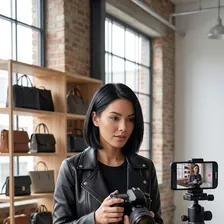
- Your phone camera and daylight
- Your real product
- PixVerse, and a second one to compare
- OpusClip for captions and Blotato
Recommended AI tools
HiggsfieldEffects from templates that already work PixVerseYou pick, not the first output OpusClipFormats in one passFree plan BlotatoA week of Reels at onceTrial
Steps
Shoot the base clips on your phone
Good base clips do most of the work. Shoot in daylight, hold the phone steady and plan one clip per effect: a macro close-up, a freeze moment, a reveal, a transition and a loop. No studio needed.
WeakA few random clips of the product on the desk.
BetterFive clips, each 5 seconds, side light from a window, product filling half the frame, one slow movement per clip.
Add the effect to each clip
Use an effect template that already works and a one-line prompt. The product must not change: same colour, shape, label and size.
Make a second version and compare
Run the same clip in a second AI video tool and put both versions side by side. Keep the one truest to the real product, not the one with the most action.
Caption and format the clips
Add short captions and export 9:16 and 1:1 versions in one pass. Check the first second: the product should be clear before any effect starts.
Label as AI-assisted and schedule
Add a short 'AI effect' note on the clip or in the caption, so viewers know what is filmed and what is an effect. Then schedule all five posts at once.
The full instruction
Copy it into any AI chat assistant and change only the first line.
Change only this line: PRODUCT = [a green ceramic mug, matte glaze, 350 ml]

You help me make five short clips of my PRODUCT: filmed on a phone, finished with one AI effect each.

I will film by a window on a plain table. Ask me where the clips will be posted before you write the captions.

Do four things:
1. Write a shot list for 5 base clips: macro close-up, freeze moment, reveal, transition and loop. For each: distance, light, the one movement and the length.
2. For each clip, write a one-line effect prompt of at most 25 words that ends with: "The product keeps its exact colour, shape, label and size."
3. List what to compare between two versions of the same clip before I choose one.
4. Write 5 captions of at most 20 words, each with a short "AI effect" note.

No people, children or animals in the clips. Do not invent claims about the product. Start with the shot list.
What you end up with
Five product clips that stop the scroll without a studio: real footage of your real product, one AI effect each, captions in two formats and an honest AI effect label. For a first clip from one photo, see /guides/first-video-clip-from-one-product-photo/.
Common mistakes
- Keeping a version where the effect changed the product's colour or label.
- Filming in dim light and expecting the effect to hide it.
- Posting effect clips without saying an AI effect was used.
Processes that need more than one tool

Each process below uses several tools, each for the job it does best. Any AI chat assistant works where one is named.
Shoot the base clips on your phone
Tools, in order: your phone camera → any AI chat assistant
- Ask a chat assistant for a shot list: one base clip per effect.
- Shoot each clip in daylight with the phone steady, three takes each.
Recommended approach for this step: your phone camera → any AI chat assistant
Money: no studio, only daylight
The prompt for this process
I will film five short base clips of my product on my phone, one for each AI effect I plan to add later.

My product: [what it is, colour, material, size]
Where I can film: [e.g. window light, wooden table]

Write a shot list for 5 clips: macro close-up, freeze moment, reveal, transition and loop. For each clip give: distance, light direction, the one movement, the length in seconds and one common mistake to avoid. Keep each clip under 8 seconds.

Start with the macro close-up.
Add the effect to each clip
Tools, in order: Higgsfield → any AI chat assistant
- Pick an effect template in Higgsfield that fits each clip.
- Ask a chat assistant for a one-line prompt per clip that keeps the product unchanged, then run it.
Recommended for this step: Higgsfield
Quality: effects from templates that already work
The prompt for this process
I will add one AI effect to each of my five product base clips in Higgsfield, using its effect templates.

Product: [colour, shape, label, size]
The five clips: [macro close-up, freeze moment, reveal, transition, loop: describe each]
The effect templates I picked: [names or descriptions]

Write one effect prompt of at most 25 words per clip. Each prompt describes only the effect and the camera, and ends with: "The product keeps its exact colour, shape, label and size." No people, children or animals.

Start with the macro close-up.
Make a second version and compare
Tools, in order: PixVerse → Higgsfield
- Run the same base clip and prompt in PixVerse.
- Pause both versions at the start, middle and end and keep the one truest to the product.
Recommended for this step: PixVerse
Quality: you pick, not the first output
The prompt for this process
I made two versions of the same product clip, one in Higgsfield and one in PixVerse.

Product facts: [colour, shape, label, size]
Version A at start, middle and end: [notes]
Version B at start, middle and end: [notes]

Compare the two first on how faithfully they show the real product, then on how clear the effect is. Say which version to keep and one change to the prompt that would fix the other.

Start with the product comparison.
Caption and format the clips
Tools, in order: OpusClip → any AI chat assistant
- Upload the chosen clips to OpusClip, add captions and export 9:16 and 1:1.
- Ask a chat assistant for short on-screen text for the first second of each clip.
Recommended for this step: OpusClip
Time: formats in one pass
The prompt for this process
I am finishing five short product clips in OpusClip: captions and 9:16 and 1:1 versions.

Product: [what it is]
What each clip shows: [paste]

For each clip write: on-screen text for the first second of at most 5 words that names the product or the detail shown, and one caption line of at most 12 words. No claims I cannot prove.

Start with clip 1.
Label as AI-assisted and schedule
Tools, in order: any AI chat assistant → Blotato
- Ask a chat assistant for five captions, each with a short 'AI effect' note.
- Schedule all five clips in Blotato in one sitting.
Recommended for this step: Blotato
Time: a week of Reels at once
The prompt for this process
I will schedule five product clips in Blotato. Each clip is filmed on my phone and has one AI effect added.

Product and what each clip shows: [paste]
Platforms: [paste]

Write 5 captions of at most 30 words. Each caption says in plain words that the effect was made with AI, for example "Filmed on my phone, AI effect added". Suggest a posting day for each, one clip per day.

Start with clip 1.
For this result we recommend these tools
This guide describes a result. These tools are one way to get there faster. Whether one pays for itself depends on your work, and we promise no result.
Higgsfield
An AI image and video generator with many models, effects and an ads studio.
From €19 per month (Starter, billed annually; 270 credits a month) (source, checked 2026-10-15)
Higgsfield is an AI image and video generator with ready camera moves and effect templates. In this guide it is used in “Add the effect to each clip” and “Make a second version and compare”. Creators use it for ads, covers and short clips, and its motion presets can turn a still product photo into a moving shot.
From Sofia’s story: Sunday: Ema and Sofia make an autumn advert
ToolPixVerse
Turns a text prompt or a photo into a short video clip.
From $10 per month (Standard, monthly billing) (source, checked 2026-10-04)
PixVerse generates short AI videos from a text prompt or a start image. In this guide it is used in “Make a second version and compare”. It is used for Reels, teasers and product moments, and it makes several versions quickly, so you keep only the best one.

From Sandra’s story: Sandra cuts the video - and keeps the stitch
ToolOpusClip
AI tool that cuts long videos into short clips with captions for social media.
From $15 USD/mo, billed monthly (Starter, available monthly only) (source, checked 2026-10-07)
OpusClip cuts long videos into short vertical clips and adds captions automatically. In this guide it is used in “Caption and format the clips”. Podcasters, coaches and shops use it to turn one recording into a week of clips, and it picks moments that stand alone and reframes the speaker for phones.
Free plan (source, checked 21 Oct 2026)
Blotato
An AI tool that writes, creates and schedules social media posts across many accounts.
From $29 per month (Starter) (source, checked 2026-10-16)
Blotato is a tool for writing, scheduling and publishing social posts on many platforms from one place. In this guide it is used in “Label as AI-assisted and schedule”. Creators and shops use it to plan a week of posts in one sitting; its strength is one queue for every channel.
7-day free trial (source, checked 21 Oct 2026)
We recommend a specialised tool for each process rather than one tool that does everything. Tools that try to do everything rarely do any one job really well, because no single function gets perfected. It is the same in life, in business and in relationships: spread your attention over ten places and nothing gets done properly.
Forward, without brakes

Now that the Kailiniai Heroes exist, you can have your own. Create one hero or several, and use them for goals that used to need a whole team or a big budget.