Guide
Blur faces and number plates before you post

For this guide and its prompts we recommend:
Offers checked 21 Oct 2026
You can now blur every stranger before posting.
Photos and a video ready to post, with bystanders' faces and number plates blurred and a consent list for the rest.

What you need
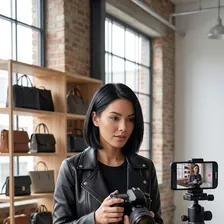
- The photos and video you want to post, in their original files
- Any AI chat assistant that can look at images
- A spreadsheet for the consent list
- A face blur tool for photos and a video editor with auto blur
- Blotato
Recommended AI tools
BlotatoEvery channel gets its post from one queueTrial
Steps
List every person and plate before you edit
Go through each file and note who and what can be recognised: faces, number plates, name badges, screens, house numbers. An assistant can point out what you missed, but you decide.
WeakIs this photo fine to post.
BetterList every face, number plate, name badge, screen and house number you can see in this photo, with where it is in the frame. Do not judge whether it is fine, just list.
Keep a consent list for people who stay visible
Staff and customers who agreed to be shown go on a consent list: name, date, which files, how they agreed. Everyone not on the list gets blurred. Whether your consent form is enough where you work: check with a professional.
ExampleColumns: file name, person or plate, on consent list (yes/no), how they agreed, date, blurred (yes/no).
Blur photos, keeping the originals safe
Blur faces and plates in a copy of each photo and keep the original in a private folder. Blur strongly enough that the face or plate cannot be read, not a light soften.
Blur the video and follow moving faces
Auto blur tracks a face or plate across the clip, but it can lose it when someone turns or passes behind something. Play the whole clip at normal speed and fix every frame where the blur slips.
Check each file once more before posting
Look at every final file side by side with the consent list. Blurring is for privacy only: never use face editing to change who someone is or to make a person look like someone else.
The full instruction
Copy it into any AI chat assistant and change only the first line.
Change only this line: LOCATION = [a busy street market on a Saturday]

You help me get photos and a video filmed at my LOCATION ready to post without showing people who did not agree.

First ask me, one question at a time: what I am posting, and who is on my consent list (names or descriptions, and which files). Then ask me to attach one photo or a still from the video.

Do three things:
1. List every face, number plate, name badge, screen and house number you can see, with where it is in the frame.
2. Mark each one as KEEP (on my consent list) or BLUR (everyone and everything else).
3. Write a short check I run on the final file before posting.

Do not suggest changing anyone's face beyond blurring. If you are unsure whether something can be recognised, mark it BLUR.

After my answers, start with the list.
What you end up with
Photos and a video where only people who agreed are visible, every other face and plate blurred, a consent list you can show and originals kept privately.
Common mistakes
- Blurring so lightly that the face or plate can still be read.
- Trusting auto blur without watching the whole clip.
- Posting a person who never agreed because they look happy in the shot.
Processes that need more than one tool

Each process below uses several tools, each for the job it does best. Any AI chat assistant works where one is named.
Spot people and plates
Tools, in order: any AI chat assistant → a spreadsheet
- Give each photo, or a still from each scene of the video, to a chat assistant that reads images and ask for a list of faces, plates, badges and screens.
- Copy the list into a consent spreadsheet and mark each item as on the consent list or to blur.
The prompt for this process
Look at this image from content I want to post: [attach photo or video still].

List every face, number plate, name badge, screen with readable text and house number you can see. For each, give where it is in the frame (e.g. top left, behind the counter) and whether it could be recognised. Do not decide what is fine to post. If you are unsure whether something is readable, say so.

Start with the faces.
Blur in photos
Tools, in order: a face blur tool → a cloud storage folder
- Blur every face and plate marked 'to blur' in a copy of each photo with a face blur tool, strongly enough that it cannot be read.
- Save blurred copies in a cloud storage folder for posting and keep the originals in a separate private folder.
The prompt for this process
Help me set up a safe routine for blurring faces and number plates in a batch of photos.

Number of photos: [number]
What the consent list says: [paste rows marked 'to blur']

Write a short routine: how to name blurred copies, where originals stay private, how strong the blur must be so a face or plate cannot be read, and a check I do on each copy. Then write a one-line rule I can give the team: blurring is for privacy only, never to change who someone is.

Start with the naming rule.
Blur in video
Tools, in order: a video editor with auto blur → a video editor
- Use auto blur to track each face and plate marked 'to blur' across the clip.
- Play the whole clip at normal speed in your video editor and fix by hand every moment where the blur slips, then export.
The prompt for this process
I am blurring faces and number plates in a video with auto blur, then checking it by hand.

Clip length and scenes: [describe]
People and plates to blur: [paste from consent list]
Moments where people turn, cross or pass behind things: [describe if known]

Write a checklist for watching the clip: which moments to slow down on, what to look for when tracking slips, and how to note the time of each fix. Then add a last check that compares the export with the consent list.

Start with the moments to slow down on.
Final check before posting
Tools, in order: any AI chat assistant → Blotato
- Give the final blurred files to the chat assistant and ask it to list anything still readable.
- Compare its list with the consent spreadsheet yourself, then schedule only cleared files in Blotato.
The prompt for this process
You are a checker for privacy, not an editor. Here is a final file I want to post: [attach blurred photo or video still].

My consent list says only these people may be visible: [describe].

List anything that can still be recognised: a face, a number plate, a badge, a screen, a reflection. For each, say where it is. If nothing is readable apart from people on my list, answer CLEAR in one line. Do not suggest any other edits.

Start with the list or CLEAR.
For this result we recommend these tools

This guide describes a result. These tools are one way to get there faster. Whether one pays for itself depends on your work, and we promise no result.
Blotato
An AI tool that writes, creates and schedules social media posts across many accounts.
From $29 per month (Starter) (source, checked 2026-10-16)
Blotato is a tool for writing, scheduling and publishing social posts on many platforms from one place. In this guide it is used in “Final check before posting”. Creators and shops use it to plan a week of posts in one sitting; its strength is one queue for every channel.
7-day free trial (source, checked 21 Oct 2026)
We recommend a specialised tool for each process rather than one tool that does everything. Tools that try to do everything rarely do any one job really well, because no single function gets perfected. It is the same in life, in business and in relationships: spread your attention over ten places and nothing gets done properly.
Forward, without brakes

Now that the Kailiniai Heroes exist, you can have your own. Create one hero or several, and use them for goals that used to need a whole team or a big budget.